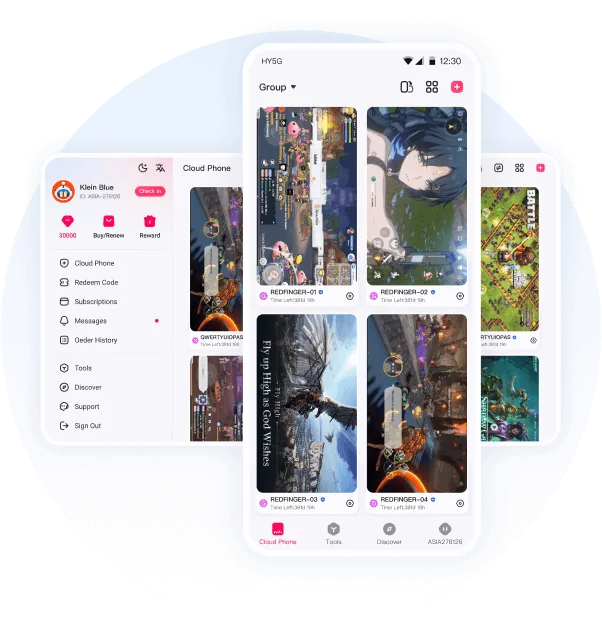
We use Redfinger to play Ragnarok: The New World. The game runs on a cloud Android phone, while your own device displays and controls it. Install the game inside Redfinger, sign in to your account and choose your usual server.
We may earn a commission from purchases made through the Redfinger links in this guide.
Get RedfingerOn this page
What does a Redfinger cloud phone do?
Think of it as a separate Android device that you rent and control over the internet. The game installation and most processing happen on the remote device. Your real phone or computer still uses data, battery and processing power to display the stream.
Redfinger can be useful when local storage is limited, you switch between devices, or you need a persistent Android session. It also adds a recurring cost, network delay and a third party that hosts your signed-in apps. A regular phone or local emulator may be the better fit for short sessions or latency-sensitive play.
You can use the same setup for other Android apps and games. Check each app's Android requirements, regional availability and rules before installing it.
Choose your device: Android, iPhone, Windows or browser
| Your device | Where to start | What to know |
|---|---|---|
| Android phone or tablet | Use Redfinger's official Android download or the store link on its website. | Redfinger is the viewer. Download the game again inside the cloud phone, not just on your physical phone. |
| iPhone or iPad | Open Redfinger's web client in Safari. Optionally use Share → Add to Home Screen. | You are accessing Android remotely, not installing the iOS edition of the game. Account linking can differ between editions. |
| Windows PC | Use the official Windows client or web access. | You do not need to run a second local Android emulator just to view Redfinger. |
| Mac or another computer | Try the web client in a supported, up-to-date browser. | Test controls, display scaling and any browser permissions before committing to a plan. |
Use the official Android download page, Windows client page or iPhone web tutorial. Avoid APKs advertised as “modded,” “unlimited” or “free VIP.”
How to set up Redfinger, step by step
- Create or sign in to your Redfinger account.
Use an email or sign-in method you can recover. Keep using that same method across clients. Your Redfinger account, Google Play account and game account are separate logins.
- Add a cloud phone.
Look for Add new or the + control. Check whether your account has a trial available; otherwise compare the displayed plans. Read the region, Android version, memory, storage, duration and renewal terms before paying.
- Open the remote Android desktop.
Select your cloud device from the device list. Confirm that taps, typing and sound work. Buttons and layouts vary between Redfinger clients, so use the current in-app labels.
- Install your app inside the cloud phone.
Use Google Play where available or the publisher's official download. Check the exact app name and publisher. Installing Redfinger itself does not install your game or copy your phone's apps.
- Download resources and test your account.
Let the app finish its patches, sign in and confirm your saved progress. Leave space for future updates. Test an actual session rather than judging performance from the home screen.
- Disconnect and reconnect once.
Close only the viewing window, then reopen the same cloud device. Check that the app is still usable and your account is correct. Do not confuse closing the viewer with stopping, resetting or deleting the cloud phone.
Redfinger's add-device instructions and app installation guide cover the underlying controls.
Redfinger for Ragnarok: The New World
RTNW works on Redfinger, and we use it to play. After creating your cloud phone, follow these steps to install the correct game and access your character. Performance depends on your chosen cloud device and connection.
- Choose the correct game. Inside the cloud phone, open Ragnarok: The New World by Gravity Game Vision on Google Play. Check the title and publisher; the Android package is
com.ggv.roworldsea.aos. - Check availability before subscribing for longer. If the store says unavailable or incompatible, verify the store region and cloud Android version with support. Use an official publisher download only where it is offered; do not bypass access restrictions.
- Finish the initial resources. Keep enough free cloud storage for downloaded game data and updates. The installer size alone is not the total storage requirement.
- Recover the right character. Use your linked game login and select the same server. Do not create a new guest account accidentally. If you normally use iOS, confirm a supported account-linking route before assuming the Android edition can access your progress.
- Test a representative session. Try a town, camera movement, combat, menus and touch controls. Close a competing login on another device if the game disconnects your session.
- Check continuity. Briefly disconnect the viewer and reconnect to the same cloud phone. Confirm the game state, then review the plan's remaining time. Repeat after major game or cloud-device updates.
The official RTNW listing already describes offline resource accumulation. Check the current in-game limits first. Redfinger can provide a remote session; it does not remove stamina, reward or activity limits, and it is not required just to use the game's own offline system.
For the rest of your setup, see the beginner progression guide, card drop gauge guide and RTNW redeem codes. Cloud-phone referral offers and game gift codes are separate promotions.
Choosing a plan, trial and server region
Do not choose by a VIP label alone. Compare the specifications shown for the actual device. A trial is useful only if you also note how its specs compare with the plan you intend to buy.
- Android version: match your app's current requirements and verify that its store listing is installable.
- Memory and storage: allow room for the game, resource packs and updates. Extra RAM is not a fix for input delay caused by the network.
- Region: test one of the nearby locations actually available to your account. For Philippine and other SEA players, Singapore may be a useful starting comparison if offered, but your connection determines the result.
- Duration and total cost: check the currency, taxes or payment fees, device count, renewal behavior and what happens at expiry. Downloading a client does not mean the cloud device is permanently free.
Check the trial instructions for eligibility. Availability and trial lengths can change, so confirm the offer shown in your account.
Settings for a usable, persistent session
There are two separate quality controls: the game's graphics settings inside Android, and Redfinger's streamed image quality. Adjust the one that matches the problem.
- For delayed taps or a breaking-up picture: start with Auto or a lower viewer resolution if offered. Test a stable Wi-Fi or wired connection and pause large uploads.
- For low in-game FPS: start with lower graphics and a 30 FPS cap if the game offers one. Raise the settings gradually while checking how combat and camera movement feel.
- For long sessions: finish patch downloads, close unused cloud apps and check device expiry. Leave only the game's permitted built-in features running.
- For mobile data: watch your real device's usage meter. Viewing the remote screen still transfers video and can use a significant data allowance.
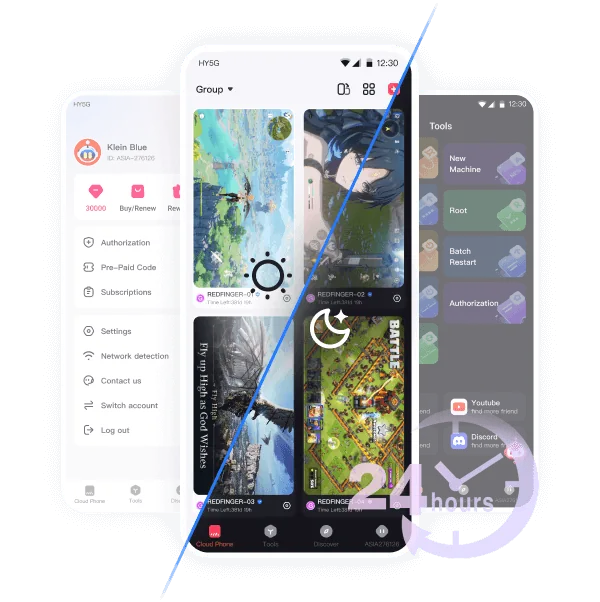
Reconnect periodically to check for game maintenance, disconnects or an expired plan. Redfinger's device-switching documentation describes reconnecting to the same remote instance. “Always on” hosting is not a guarantee of uninterrupted gameplay, automatic quest completion or permission to use bots.
Redfinger troubleshooting
| Problem | Check this first |
|---|---|
| Cloud phone is missing | Confirm the Redfinger login method/account, selected region and device expiry, then refresh the device list. A different login can open a different account. |
| Trial queue or no free device | Check eligibility and the notice in the app. Trial supply can run out; do not buy a long plan just to skip an untested setup. |
| Game missing or incompatible | Check the exact title, publisher, store region and cloud Android version. Ask support about a suitable device; do not spoof a device or bypass a game restriction. |
| Blurry image or delayed taps | Lower the viewer's stream quality, pause heavy transfers and test another stable connection. Compare an available nearby region before paying for more CPU/RAM. |
| Game stutters but Android menus respond | Lower the game's graphics and FPS, finish resource downloads and close unused cloud apps. A higher-spec plan may help rendering, but it will not fix a poor network route. |
| Black screen or repeated crash | Update the client and game, check free cloud storage, then restart the app. Restart the cloud device only after protecting your session; avoid a factory reset as a first fix. |
| Character missing or login disconnects | Verify the game login provider and server. Close a competing session on your other device and check game maintenance notices before reinstalling. |
If support is needed, send the device region, Android version, client version, time of the problem and a screenshot with personal details hidden. Never send passwords or one-time login codes.
Protect your account and data
- Use unique passwords and enable available security controls on your email, Google and game accounts. Do not store banking apps or saved payment cards on a gaming cloud device.
- Follow the game's current cloud-device, account-sharing and automation rules. A paid Redfinger plan does not override them or guarantee protection from enforcement.
- Keep recovery information outside the cloud device. Do not rely on a guest game account surviving a reset, cancellation or trial expiry.
- Before releasing a device, back up needed files, sign out of apps and review linked-account sessions. Check Redfinger's reset/release instructions and renewal settings before cancelling.
Trial devices may be recycled when access ends. Review Redfinger's renewal help and your current expiry notice instead of assuming your installed apps will remain available indefinitely.
Frequently asked questions
Is Redfinger a cloud phone or a regular Android emulator?
Redfinger hosts an Android device on remote servers. Your phone or computer controls that device through a streamed screen. A local emulator instead uses your own computer to run Android. Redfinger requires internet access to view and control the session.
Can I use Redfinger on iPhone, iPad or Mac?
Yes. Redfinger documents browser access for iOS and macOS, including Safari and Add to Home Screen on iPhone. The remote device still runs Android; this does not install Android on your iPhone or run the iOS edition of a game.
Does Redfinger support Ragnarok: The New World?
Yes. We use Redfinger to play Ragnarok: The New World. Install the official Android version by Gravity Game Vision, sign in with your linked game account and select your server. Performance can vary by cloud device and connection, so try your chosen setup before buying a longer plan.
Is Redfinger free to use?
Eligible accounts may be offered a free trial, depending on availability. Continued use normally requires a paid plan. Check the trial duration, device specifications and renewal price shown in your account before subscribing.
Does the game keep running when I close Redfinger?
Closing the viewer is different from shutting down the cloud phone. Redfinger is designed to keep a rented device running while you are disconnected, but game maintenance, crashes, logouts and plan expiry can interrupt it. Cloud hosting does not complete quests or enable automation by itself.
Do I need a cloud phone to earn RTNW offline rewards?
No. The official Ragnarok: The New World listing describes offline resource accumulation. Check the current in-game limits before paying for cloud time. A persistent remote session and the game's own offline rewards are different features; a cloud phone does not remove reward caps.
Official help and sources
Use these official help pages if your setup screen looks different or you need help with a trial. Product illustrations: Redfinger.
Get started with Redfinger
Choose a cloud phone, install RTNW or your preferred Android app, and sign in to get started.
Get Redfinger